There seem to be at least two ways to do this:
1) Add the following command to sessions:
emerald --replace &
2) Replace the following line in /usr/bin/compiz-decorator
from:
USE_EMERALD="no"
to
USE_EMERALD="yes"
Then, restart X server.
Enjoy!
Wednesday, June 18, 2008


Sunday, June 15, 2008
Auto-complete hostnames with using bash
Having forever used tcsh, this is something new I discovered when I switched to bash.
Here's how it works:
prompt%>ssh my
becomes:
prompt%>ssh mypc.homelinux.org
Here's how to set it up:
1) Create a file similar to /etc/hosts
e.g: (/home/marke/hostfile)
* note: you don't really seem to need the real IP address. Just the name. You ca even shorten it if you have resolver set correctly.
2) Add the following to your .bashrc
Yor're done!
Enjoy!
For more info:
* man bash
* link
Here's how it works:
prompt%>ssh my
becomes:
prompt%>ssh mypc.homelinux.org
Here's how to set it up:
1) Create a file similar to /etc/hosts
e.g: (/home/marke/hostfile)
---snip---
# Local PC
127.0.0.1 localhost
127.0.1.1 mypc.homelinux.org
# Other
0.0.0.0 laptop1.homelinux.org
0.0.0.0 laptop2.homelinux.org
---snip---
* note: you don't really seem to need the real IP address. Just the name. You ca even shorten it if you have resolver set correctly.
2) Add the following to your .bashrc
export HOSTFILE="/home/marke/hostfile"
Yor're done!
Enjoy!
For more info:
* man bash
* link
How to disable tilde expansion on bash, Ubuntu 8.04 (hardy)
This is how to prevent bash from replacing "~" with "/home/" when you auto-complete using .
1) Edit .bashrc
prompt%> cd
prompt%> vi .bashrc
2) Add the following lines:
3) Try it out on a new terminal
For those interested, see: /etc/bash_completion Look for "tilde".
References:
* http://www.linuxquestions.org/questions/linux-software-2/how-to-stop-bash-from-replacing-with-homeusername-643162/
1) Edit .bashrc
prompt%> cd
prompt%> vi .bashrc
2) Add the following lines:
# Disable Tilde Expansion
_expand()
{
    return 0;
}
3) Try it out on a new terminal
For those interested, see: /etc/bash_completion Look for "tilde".
References:
* http://www.linuxquestions.org/questions/linux-software-2/how-to-stop-bash-from-replacing-with-homeusername-643162/
Saturday, June 14, 2008
Ubuntu standard hotkeys I always forget
Actually, I only wanted to note down one. "Activate window menu". The hotkey for it is: ALT + Space. You then have access to the move command. This is particularly useful when your window just happens to slide under the menubar like this:

Update:
Alt-F7 Move Window
I'll add to this post as I forget & remember more hotkeys. :)
Enjoy!
References:
* http://vntutor.wordpress.com/2007/05/23/useful-hotkeys-in-ubuntu/

Update:
Alt-F7 Move Window
I'll add to this post as I forget & remember more hotkeys. :)
Enjoy!
References:
* http://vntutor.wordpress.com/2007/05/23/useful-hotkeys-in-ubuntu/
How to setup Skype on Ubuntu 8.04 Hardy on Asus P5K-E Wifi/AP
It took me some time to get this working. So I'm writing it down so I can go back to it in case I have to do it again. Here's how I got mine to work:
1) Edit sources.list
prompt%> sudo vi /etc/apt/sources.list
2) Add the following line:
deb http://download.skype.com/linux/repos/debian/ stable non-free
3) Update & install skype
prompt%> sudo apt-get update
prompt%> sudo apt-get install skype
4) If you encounter problems with libraries, do the following:
prompt%> sudo apt-get install -f
5) Run skype
prompt%> skype &
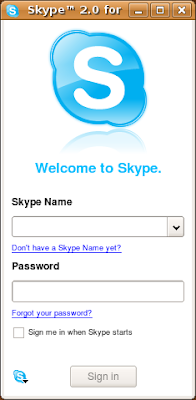
Now, the more difficult part is getting the mic to work. (Assuming you have no problems with audio playback). Luckily here are the tricks:
1) Go to System->Preferences->Sound. In the Devices tab->Sound Capture, select ALSA.
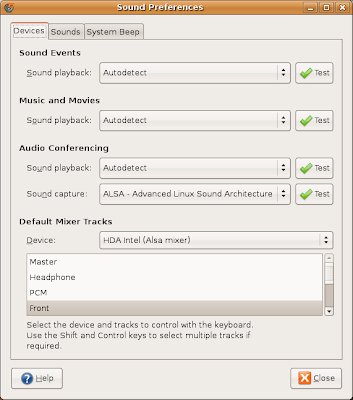
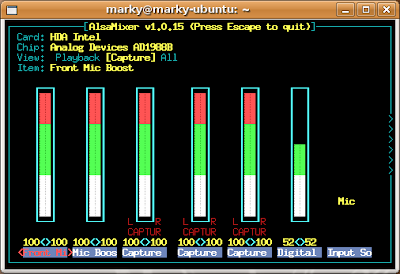
2) Open up a terminal, type the following:
prompt5> alsamixer -V capture
Now, make sure all Captures are set to CAPTUR. You can set/unset using the space key. Make sure input source is set to mic. Press ESC to quit.
3) Try recording from your mic using Applications->Sound & Video-> Sound Recorder. If that now works, you're looking good.
4) In Skype, go to Options->Sound Devices->Sound In. Select HDA Intel (hw:Intel,0)
5) In the same tab, uncheck Allow Skype to automatically adjust my mixer levels.
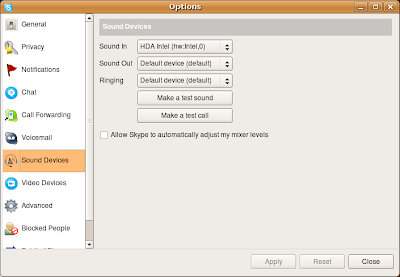
6) Now, try calling Echo123 (Sound Test Service)
Enjoy!
References:
* http://technical-itch.co.uk/2007/09/18/how-to-install-skype-on-ubuntu/
* http://forum.skype.com/index.php?showtopic=66544
* http://forum.skype.com/index.php?showtopic=126561&st=0&p=575491&#entry575491
* http://srimal-techdiary.blogspot.com/2008/05/using-mic-with-skype-2-on-ubuntu-8.html
1) Edit sources.list
prompt%> sudo vi /etc/apt/sources.list
2) Add the following line:
deb http://download.skype.com/linux/repos/debian/ stable non-free
3) Update & install skype
prompt%> sudo apt-get update
prompt%> sudo apt-get install skype
4) If you encounter problems with libraries, do the following:
prompt%> sudo apt-get install -f
5) Run skype
prompt%> skype &

Now, the more difficult part is getting the mic to work. (Assuming you have no problems with audio playback). Luckily here are the tricks:
1) Go to System->Preferences->Sound. In the Devices tab->Sound Capture, select ALSA.

2) Open up a terminal, type the following:
prompt5> alsamixer -V capture
Now, make sure all Captures are set to CAPTUR. You can set/unset using the space key. Make sure input source is set to mic. Press ESC to quit.

3) Try recording from your mic using Applications->Sound & Video-> Sound Recorder. If that now works, you're looking good.
4) In Skype, go to Options->Sound Devices->Sound In. Select HDA Intel (hw:Intel,0)
5) In the same tab, uncheck Allow Skype to automatically adjust my mixer levels.

6) Now, try calling Echo123 (Sound Test Service)
Enjoy!
References:
* http://technical-itch.co.uk/2007/09/18/how-to-install-skype-on-ubuntu/
* http://forum.skype.com/index.php?showtopic=66544
* http://forum.skype.com/index.php?showtopic=126561&st=0&p=575491&#entry575491
* http://srimal-techdiary.blogspot.com/2008/05/using-mic-with-skype-2-on-ubuntu-8.html
Tuesday, June 10, 2008
Number pad / Numeric keypad not working in Ubuntu 8.04 (Hardy)
This was getting really annoying. Luckily, the solution was simple:
Click on System->Preferences->Keyboard
Open Mouse Keystab.
Uncheck "Allow to control the pointer using the keyboard"

Enjoy!
Click on System->Preferences->Keyboard
Open Mouse Keystab.
Uncheck "Allow to control the pointer using the keyboard"

Enjoy!
Sunday, June 8, 2008
CF Card Speeds
I hate it when you have to switch CF cards. It just always has to happen right when you're in middle of capturing those perfect frames. I think I need a slightly larger card. Perhaps 4GB or 8GB? Learning from experience, I also want a 120x or higher. 80x is just too slow. Below is my quick reference guide to CF card speeds.

References:
* http://en.wikipedia.org/wiki/CD-ROM#Transfer_rates
* My flickr pics here.
| Transfer Speed: | MB/sec: |
| 1x | 0.15 |
| 20x | 3 |
| 80x | 12 |
| 100x | 15 |
| 120x | 18 |
| 133x | 19.95 |
| 150x | 22.5 |
| 200x | 30 |
| 300x | 45 |
| 400x | 60 |
| 500x | 75 |

References:
* http://en.wikipedia.org/wiki/CD-ROM#Transfer_rates
* My flickr pics here.
Subscribe to:
Posts (Atom)